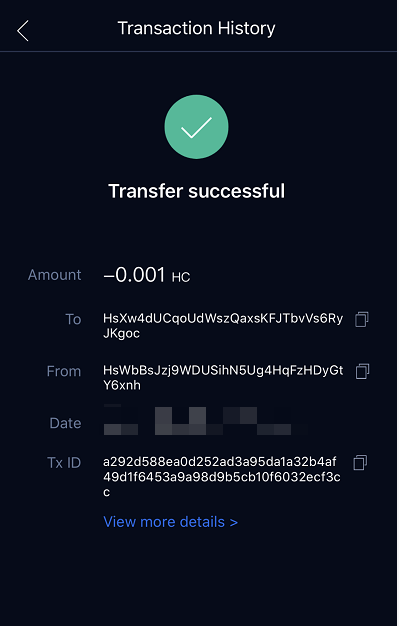
Prepare:
- Two secure mobile phones without root.
- One mobile phone to installlatest version of HyperPay app, the other to install HyperKey app.
- When installing HyperKey offline wallet, the mobile phoneshould turn off the Internet connection or turn on the Flight mode, for HyperKey can only be used in the state of disconnection.
HyperPay Download:https://hyperpay.tech/download?lang=en
HyperKey Download:https://hyperpay.tech/hyperkey_down?lang=en
Ⅰ Set Information Wallet
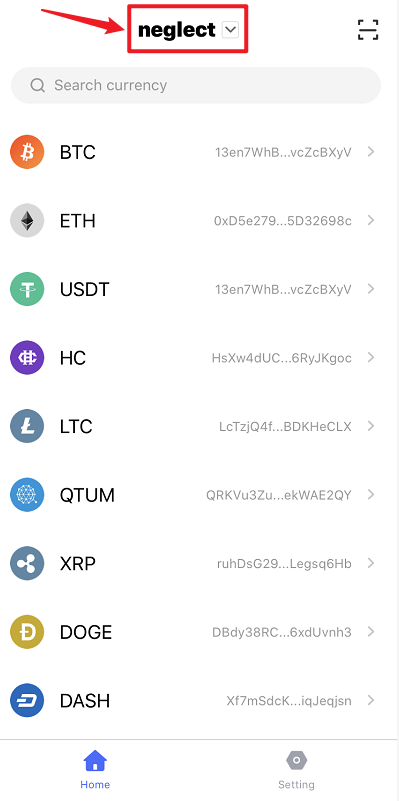
- Enter the home page of HyperKey offline wallet, click the top button to jump to the wallet list page
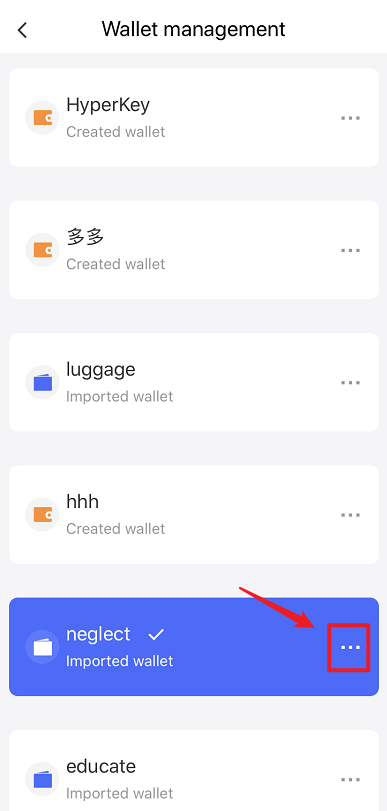
- Click “···“ button, jump to the wallet management page
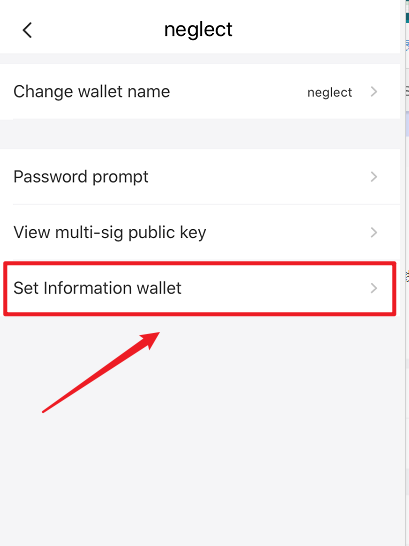
- Click “Set Information Wallet” and jump to the QR code page
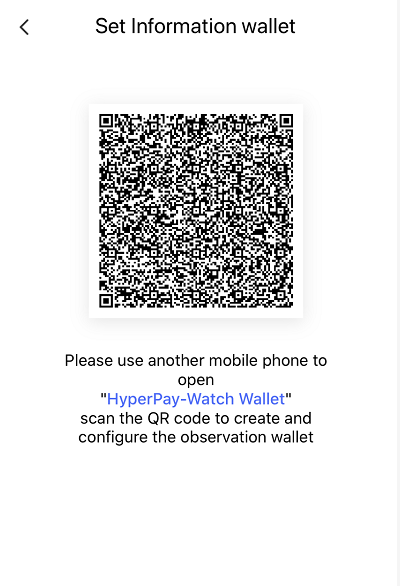
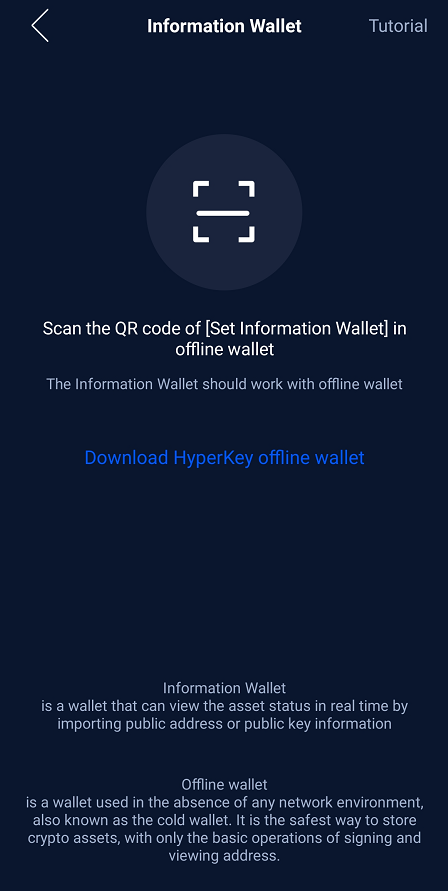
- Open HyperPay with another mobile phone, click "Information Wallet" in the sidebar, click the scan button, and scan the QR code in the HyperKey offline wallet

Ⅱ Initiate Transaction
- Hyperpay - Information Wallet to initiate the transfer request and fill in the transfer information
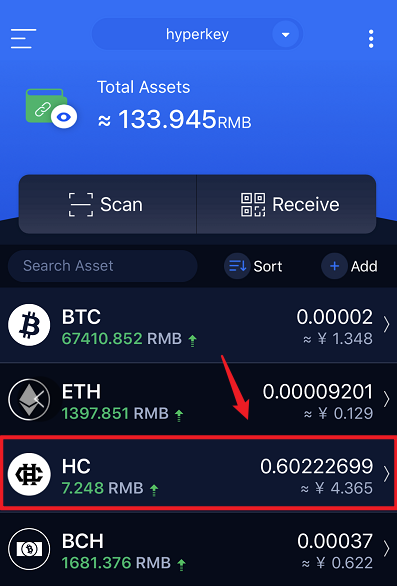
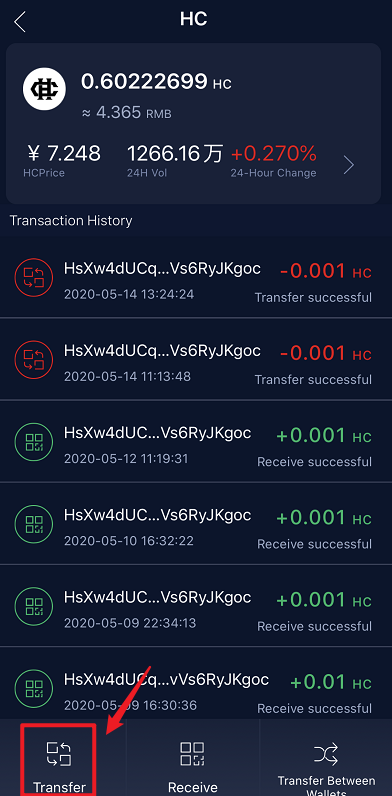

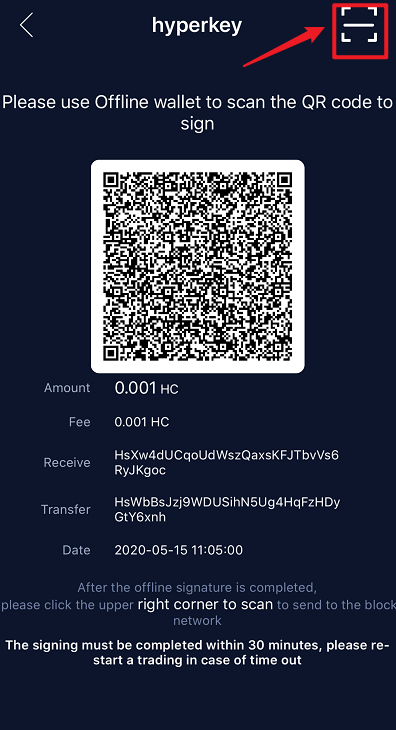
- Encrypted QR code to be signed generated

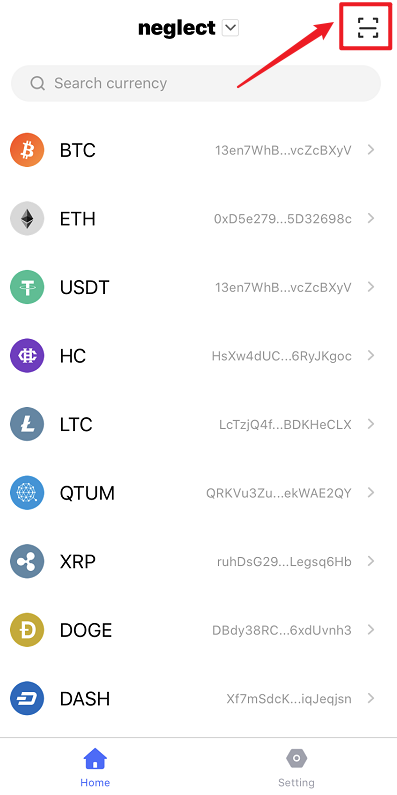
- Click the scan button on the home page of HyperKey offline wallet, to scan the QR code in the Information Wallet
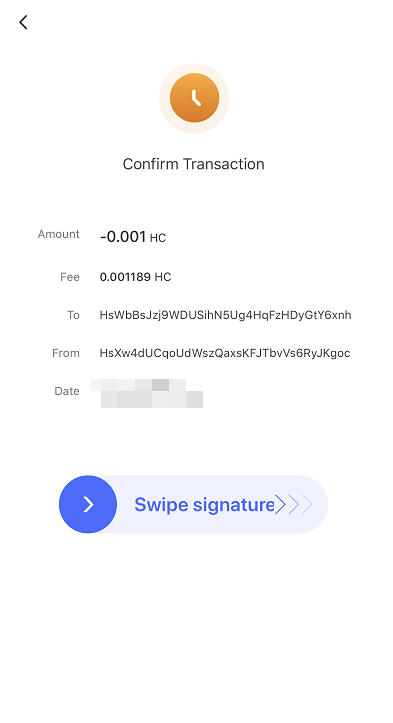
- After confirming all the information filled in is correct, drag the signature slider to the right end to prepare for signature
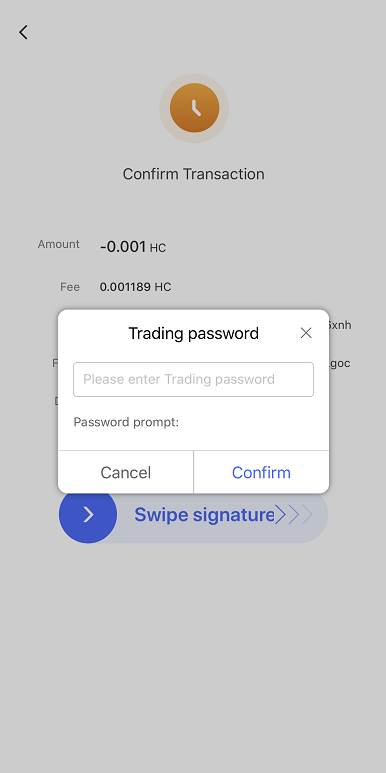
- Enter the trading password and click “Confirm”
- The signature succeeded. The signed QR code to be broadcast generated
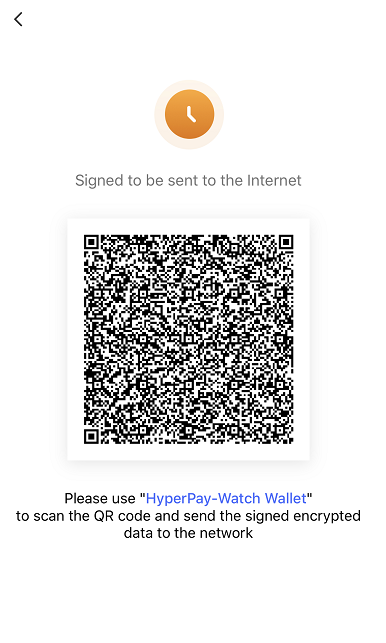
- Click the scan button in HyperPay - Information Wallet to scan the QR code signed in HyperKey offline wallet to be broadcast, and send information
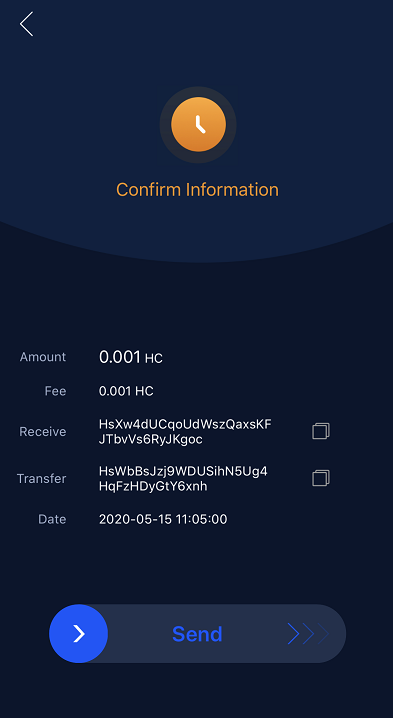
- Broadcast succeeded